Enhancements to Guest Self Service Setup
The following enhancements have been made to the Guest Self Service Setup screen (All Settings ➜ General ➜ Guest Self Service):
-
A new option, Room Number, has been added to the Check In Options and Default Check In Option drop-down lists in the Check In Setup section of the Home Screen Configuration tab.
-
Users can customize the message to be displayed for the following scenarios:
-
When a reservation is not retrieved successfully
-
When multiple reservations are retrieved for the entered reservation details
-
When the check-in, and check-out operations are not successful
-
-
When the Confirmation number is selected as an option for check-in, check-out, and key generation, guests will not be prompted to enter their last name mandatorily when performing a check-in, check-out, or when generating keys.
Check-In Reservations Using Room Number
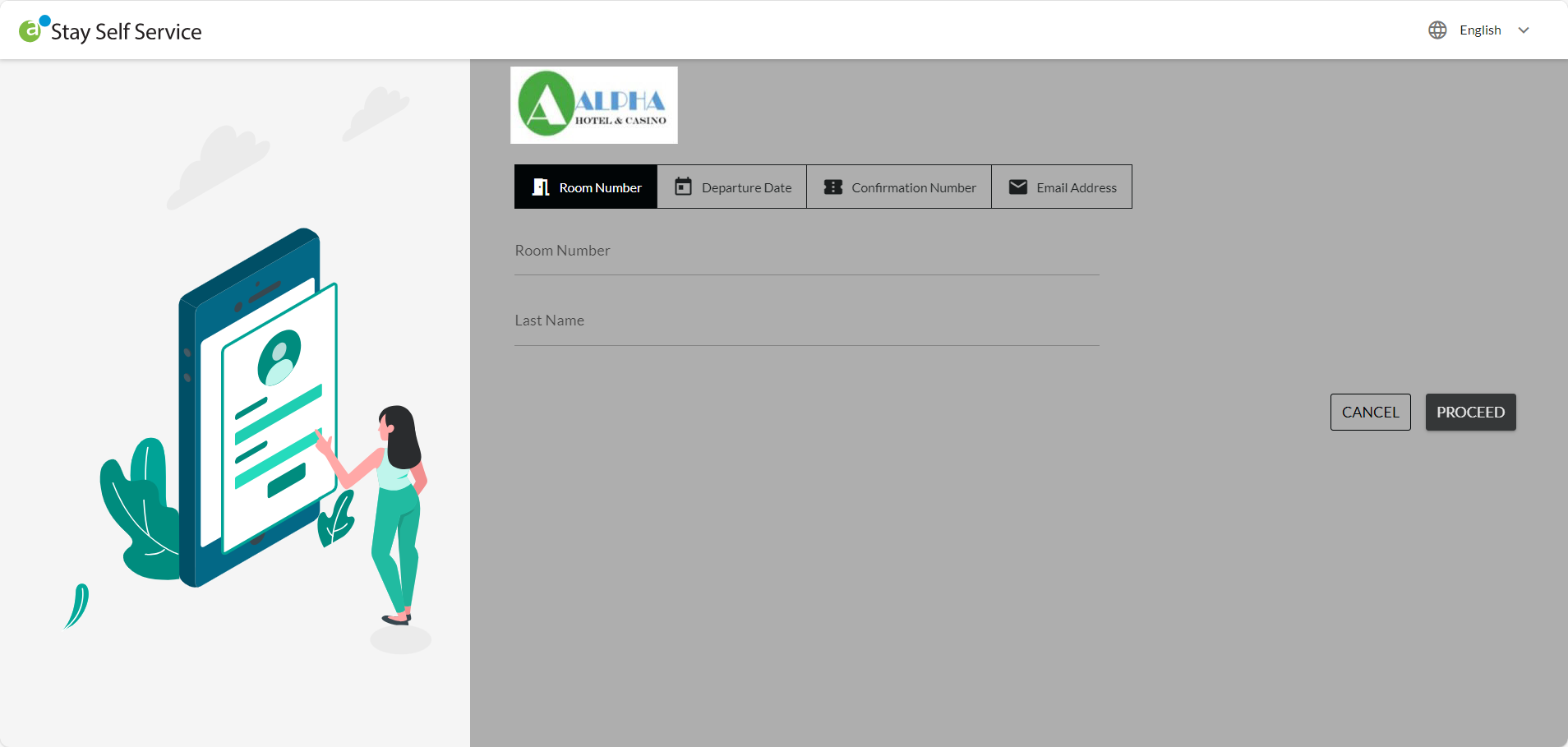
When the Room Number option is selected in the Check In Options or the Default Check In Option drop-down list in the Check In Setup section (All Settings ➜ General ➜ Guest Self Service ➜ Home Screen Configuration ➜ Check In Setup), guests will be prompted to enter their last name and room number when checking in a reservation through Guest Self Service.
The reservation that matches the entered last name and room number will be retrieved successfully.
Check-In, Check-Out, and Generation of Keys Using Confirmation Number
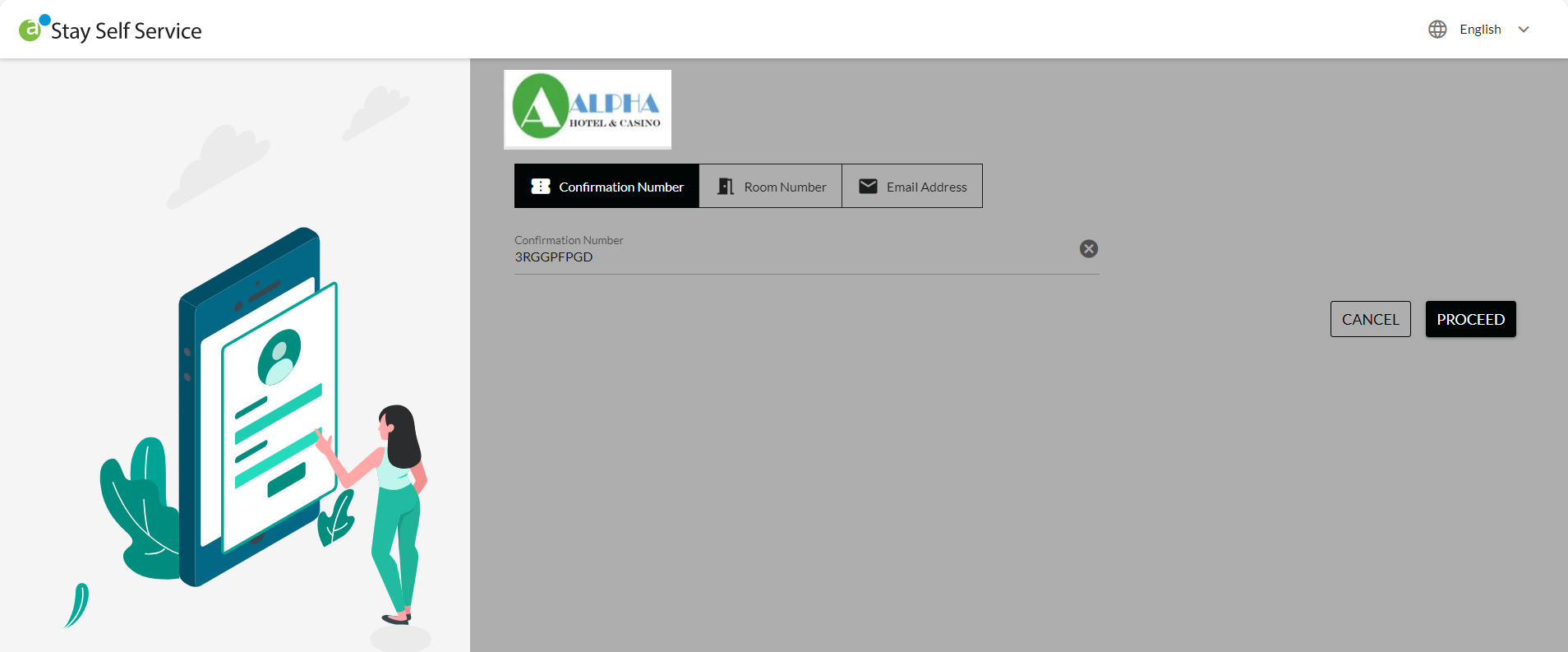
When the Confirmation Number option is selected in the following fields, guests will no longer be prompted to enter their last name when performing a check-in, check-out, or when generating keys through Guest Self Service:
-
The Check In Options or Default Check In Option drop-down lists in the Check In Setup section
-
The Checkout Options or Default Check Out Option drop-down lists in the Checkout Setup section
-
The Room Keys Validation or Default Room Keys Option drop-down lists in the Room Keys Setup section
The check-in, check-out, and key creation operations can be performed successfully by entering the confirmation number assigned to the reservation alone.
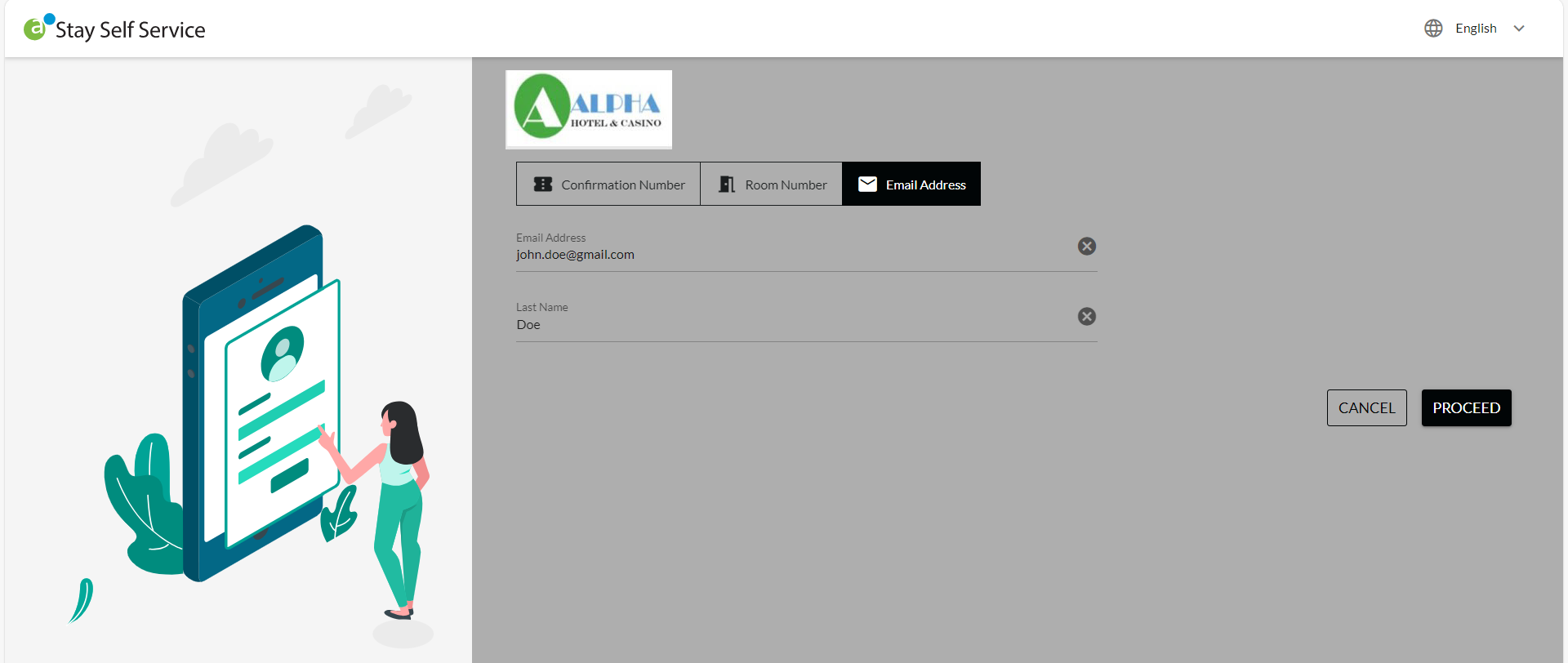
When the other options of Room Number, Departure Date, or Email Address are selected, guests will be prompted to enter their last name in addition to the selected option.
Display Custom Messages
-
Users can display custom messages in Guest Self Service when the check-in, check-out operations are not successful, in the General Error Message Setup section (All Settings ➜General ➜Guest Self Service ➜Home Screen Configuration ➜ General Error Message Setup). This message is displayed when the message configured in the Reservation Not Found Message Setup section is not applicable, such as, when the reservation is already checked in/out or if the room isn’t ready for check-in.
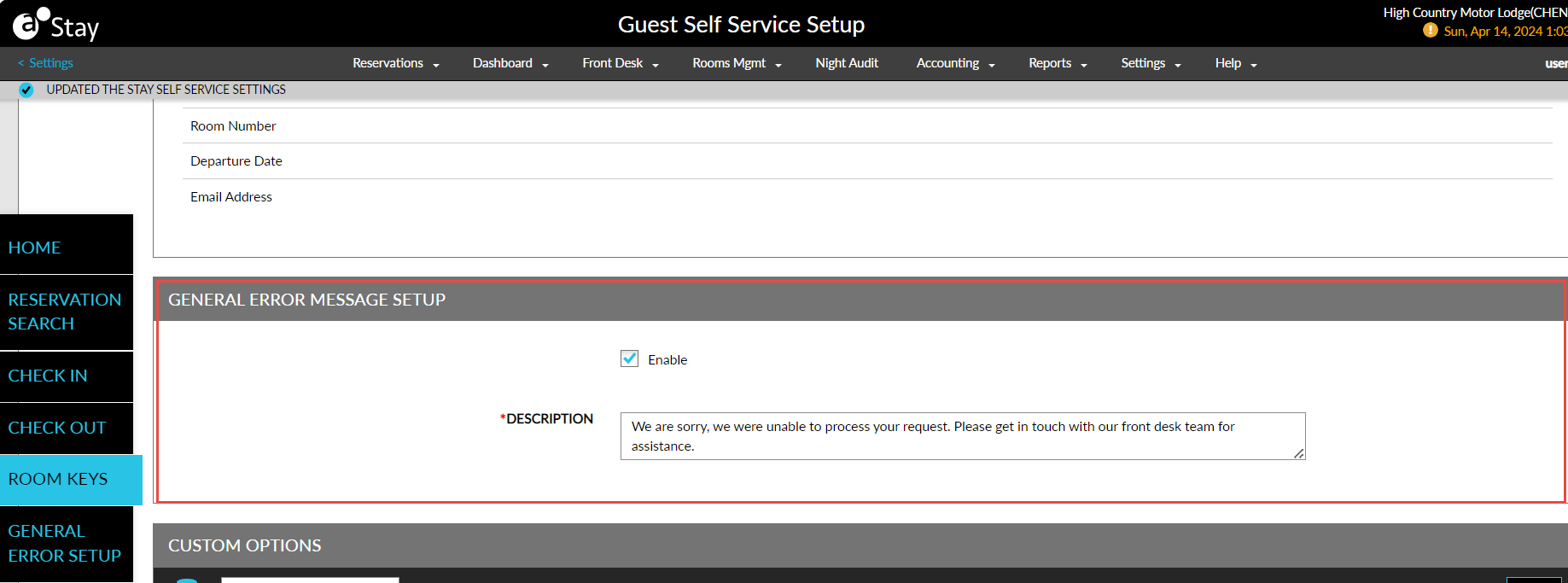
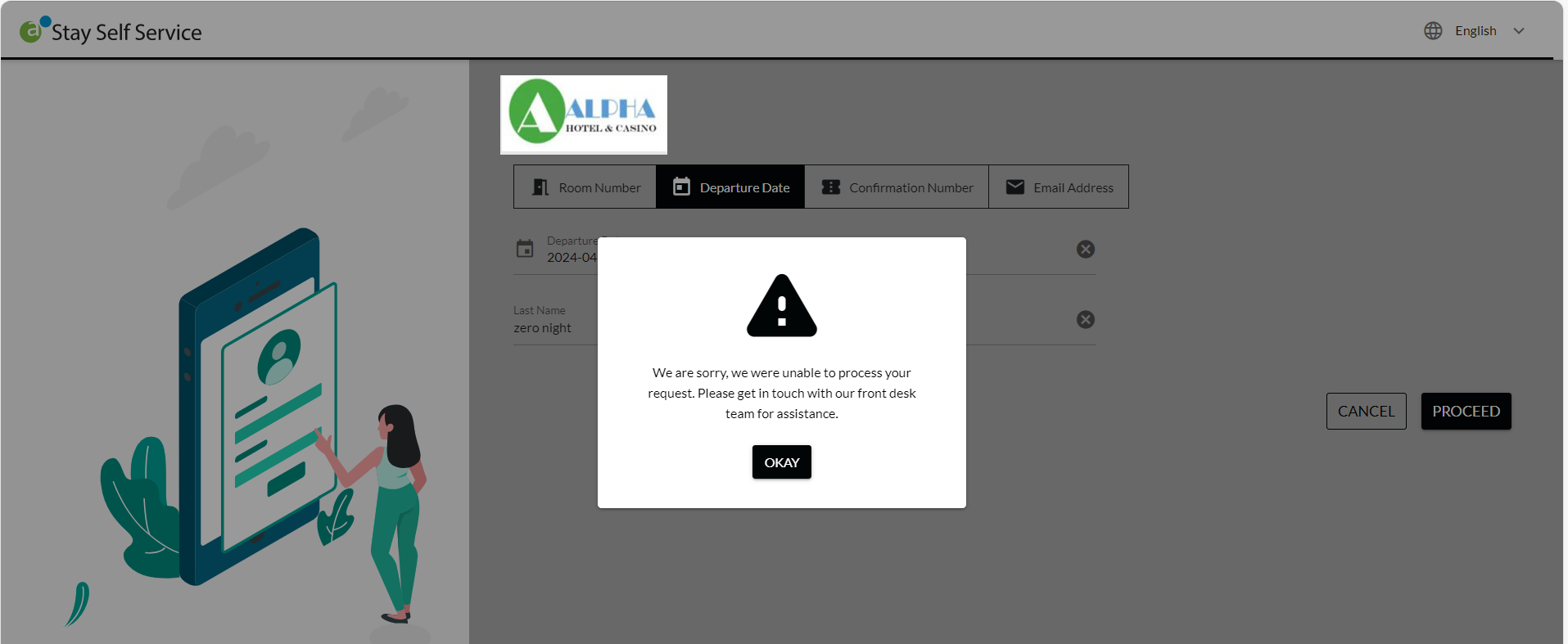
Users must select the Enable checkbox and configure the message in the Description field. Users can enter a maximum of 150 characters. When the checkbox is not selected, the Description field will be greyed out.
-
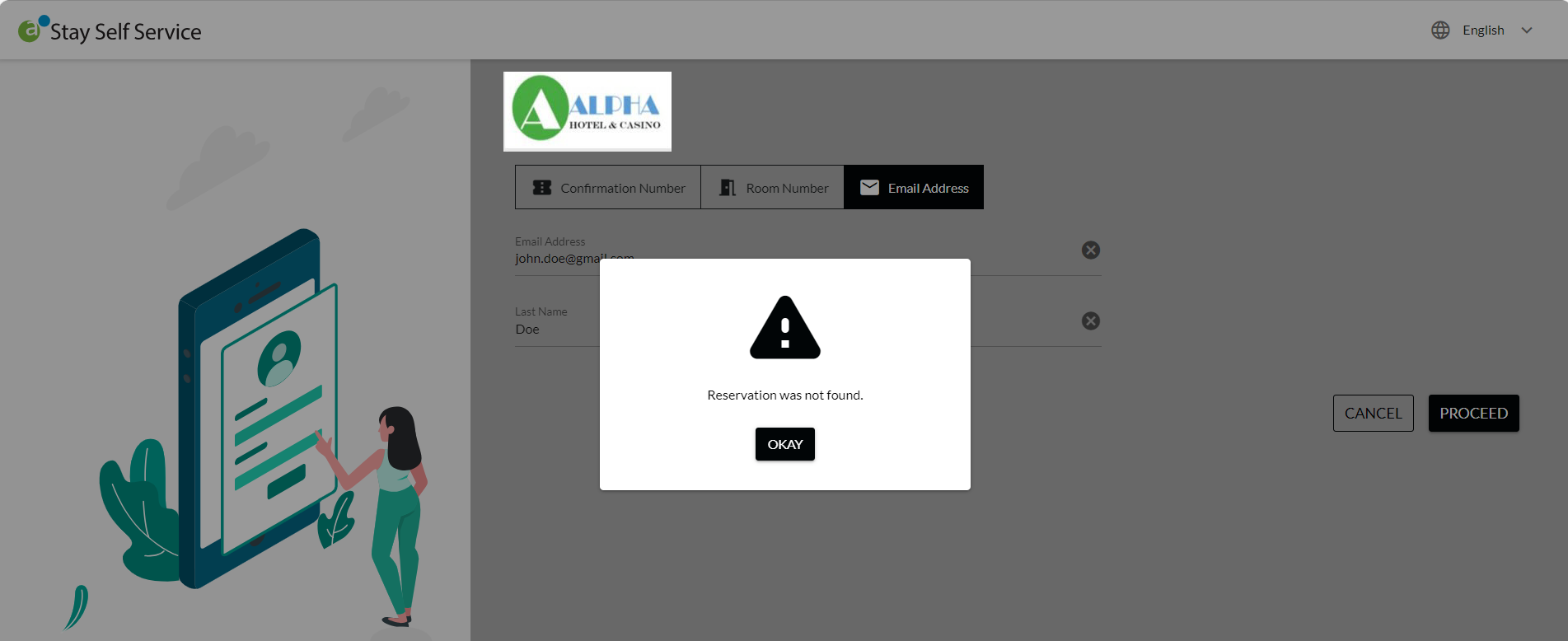
Users can customize the message to be displayed in Guest Self Service when a reservation is not retrieved successfully based on the reservation details entered, in the Reservation Not Found Message Setup section (All Settings ➜General ➜Guest Self Service ➜Reservation).
-
Users must select the Enable checkbox and configure the message in the Description field.
-
Users can enter a maximum of 150 characters. When the checkbox is not selected, the Description field will be greyed out.
-
-
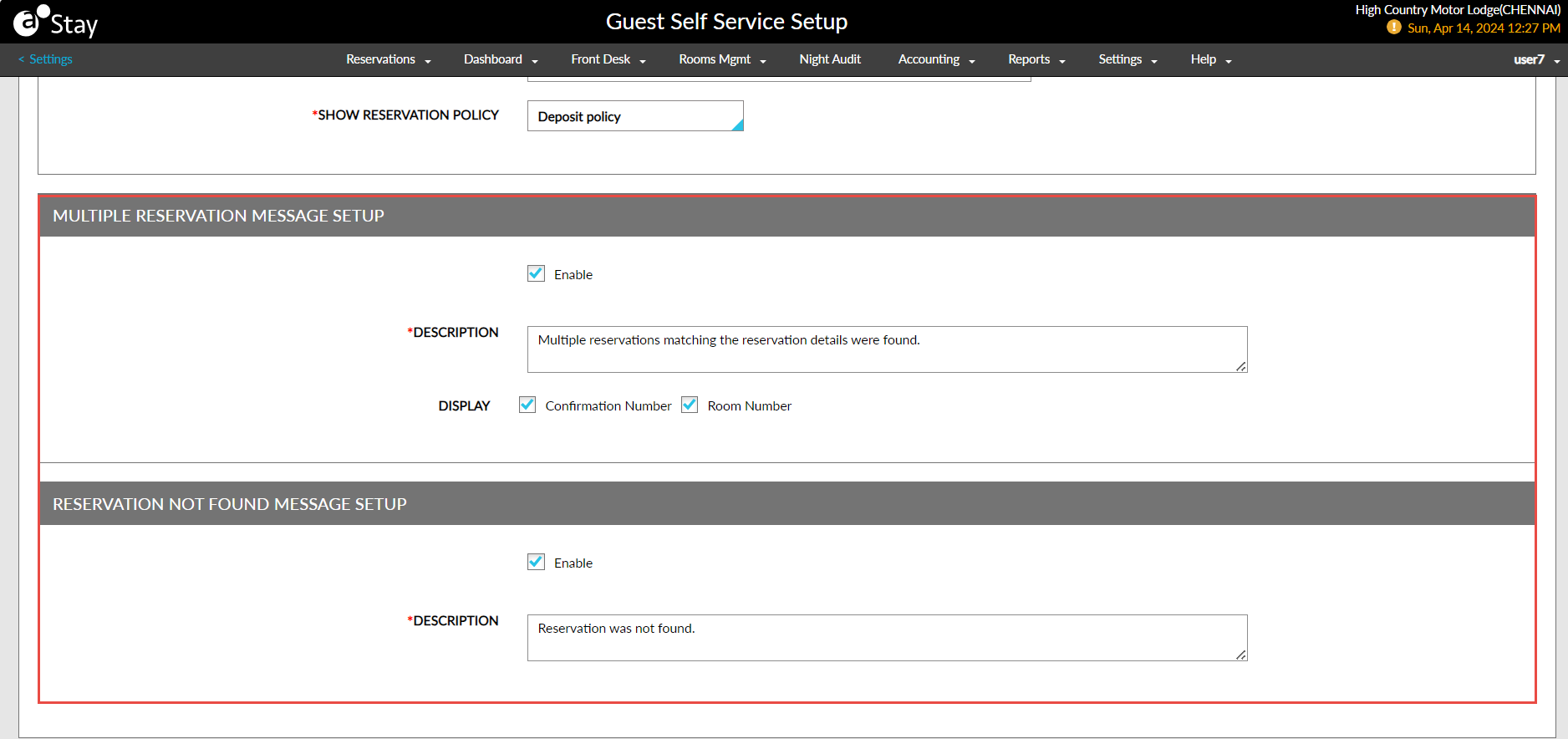
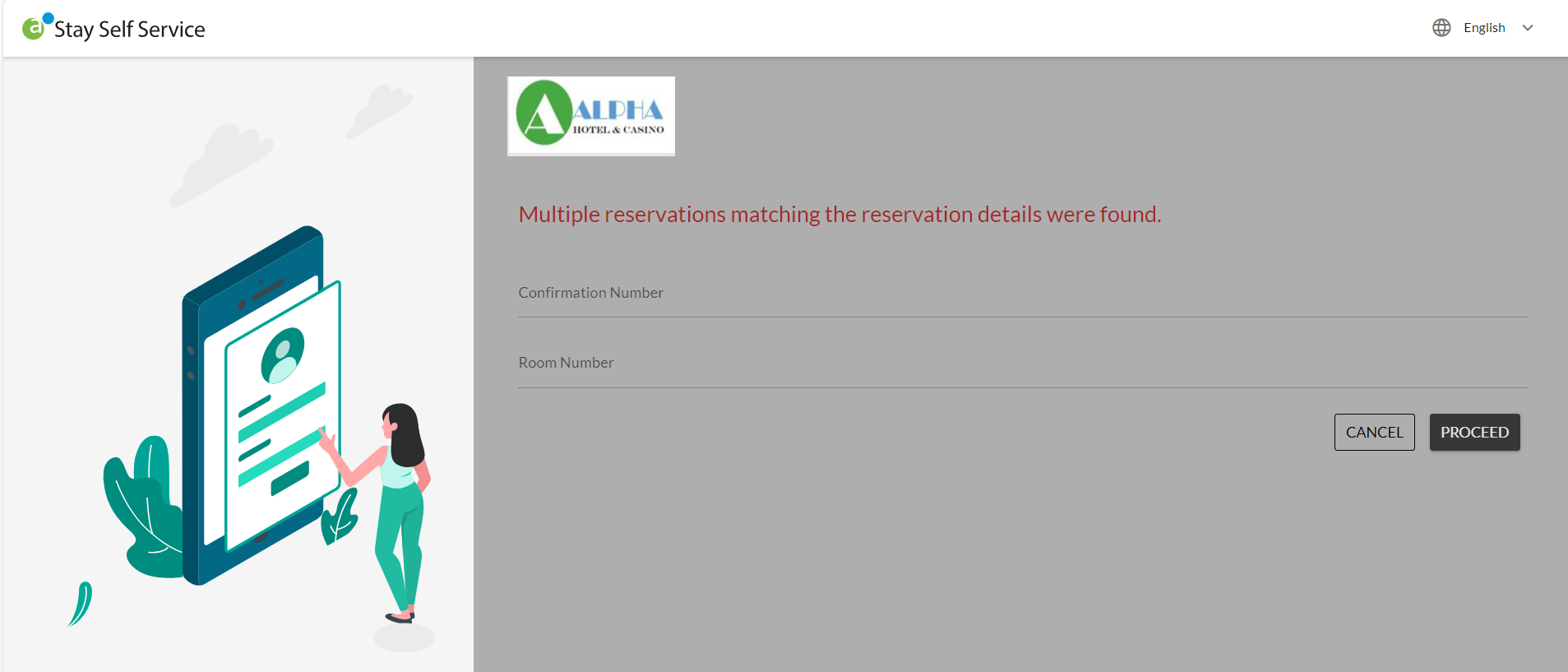
Users can customize the message to be displayed in Guest Self Service when multiple reservations that match the entered reservation details are retrieved, in the Multiple Reservation Message Setup section (All Settings ➜General ➜Guest Self Service ➜Reservation).
-
Users must select the Enable checkbox and configure the message in the Description field.
-
Users can enter a maximum of 150 characters. When the checkbox is not selected, the Description field will be greyed out.
-
-
When the Confirmation Number checkbox is selected, users will be prompted to enter the confirmation number of the reservation to be retrieved.
-
When the Room Number checkbox is selected, users will be prompted to enter the room number of the reservation to be retrieved.
-
When both the checkboxes are selected, users will be prompted to enter the confirmation number or the room number of the reservation to be retrieved.
-
When both the checkboxes are not selected, only the configured message will be displayed.